
LinkedIn Character Counter
Write perfect LinkedIn content without errors. Instant character count for Posts, About Section, and Messages. Secure, fast, and mobile-friendly.
LinkedIn Post Character Limit Checker 2026
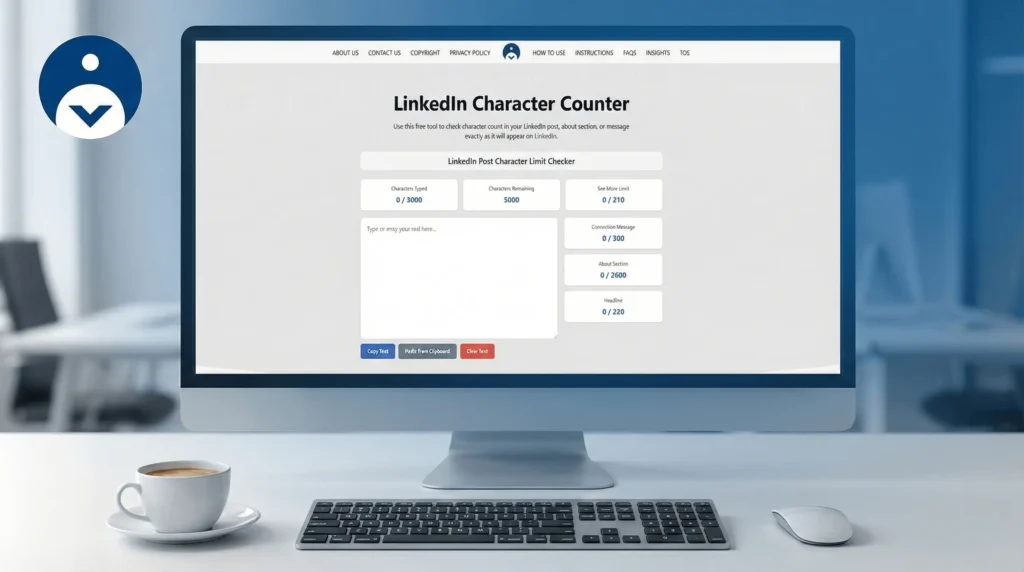
How to use the LinkedIn Character Counter?
We made this free tool an extremely easy to use, just follow the below steps if you are newbie:
- Copy your LinkedIn text (post, headline, about, or message).
- Paste it into the text box on this page.
- Check the boxes that show:
- Characters typed
- Characters remaining
- “See more” count
- Limits for headline/about/connection message
Then edit your text until it fits.
Small writing tips (SEO Tip):
- Use short sentences.
- Use simple words.
- Add line breaks to make it easy to read.
- Remove extra words like “actually“, “basically“, “very“.
What is LinkedIn Character Counter?
Writing on LinkedIn is easier when the post is the right length. This LinkedIn Character Counter helps you check your text before you publish, so you don’t cross LinkedIn’s limits and your message stays clean and readable.
This Linkedin Downloader Tool is made for anyone who posts on LinkedIn students, job seekers, business owners, and creators – who want a simple way to count characters (letters + spaces) in seconds.
What this tool does?
A LinkedIn Character Counter checks how many characters you typed and how many are left for different LinkedIn areas, like:
- LinkedIn Post text limit (for regular posts).
- “See more” preview limit (the short preview people see before clicking).
- Connection message limit (when sending a connection request note).
- About section limit (profile “About“).
- Headline limit (your profile headline).
Why it matters: when your text is too long, parts can get cut off or hidden, and readers may miss your main point.
Why character count matters on LinkedIn?
LinkedIn is a fast-scrolling platform. Most people decide in a few seconds whether to read your post. The first lines are the most important.
Here’s how this tool helps:
- Cleaner posts: You can keep your message short, clear, and easy to read.
- Better first impression: The “See more” preview helps you place the best line early.
- Fewer mistakes: You can avoid going over limits in your headline, about section, or connection note.
- Saves time: No guessing, no rewriting again and again.
Tip: Put your main idea in the first 1-2 lines. That way even the preview looks strong.
Common LinkedIn character limits (Precautions)
Different parts of LinkedIn have different limits, so one message does not fit everywhere.
These limits are commonly listed as:
- Post: up to 3000 characters.
- “See more” preview: about 210 characters.
- Connection message: up to 300 characters.
- About section: up to 2600 characters.
- Headline: up to 220 characters.
Note: LinkedIn can change limits over time, so it’s smart to check before posting.