LinkedIn Post Preview
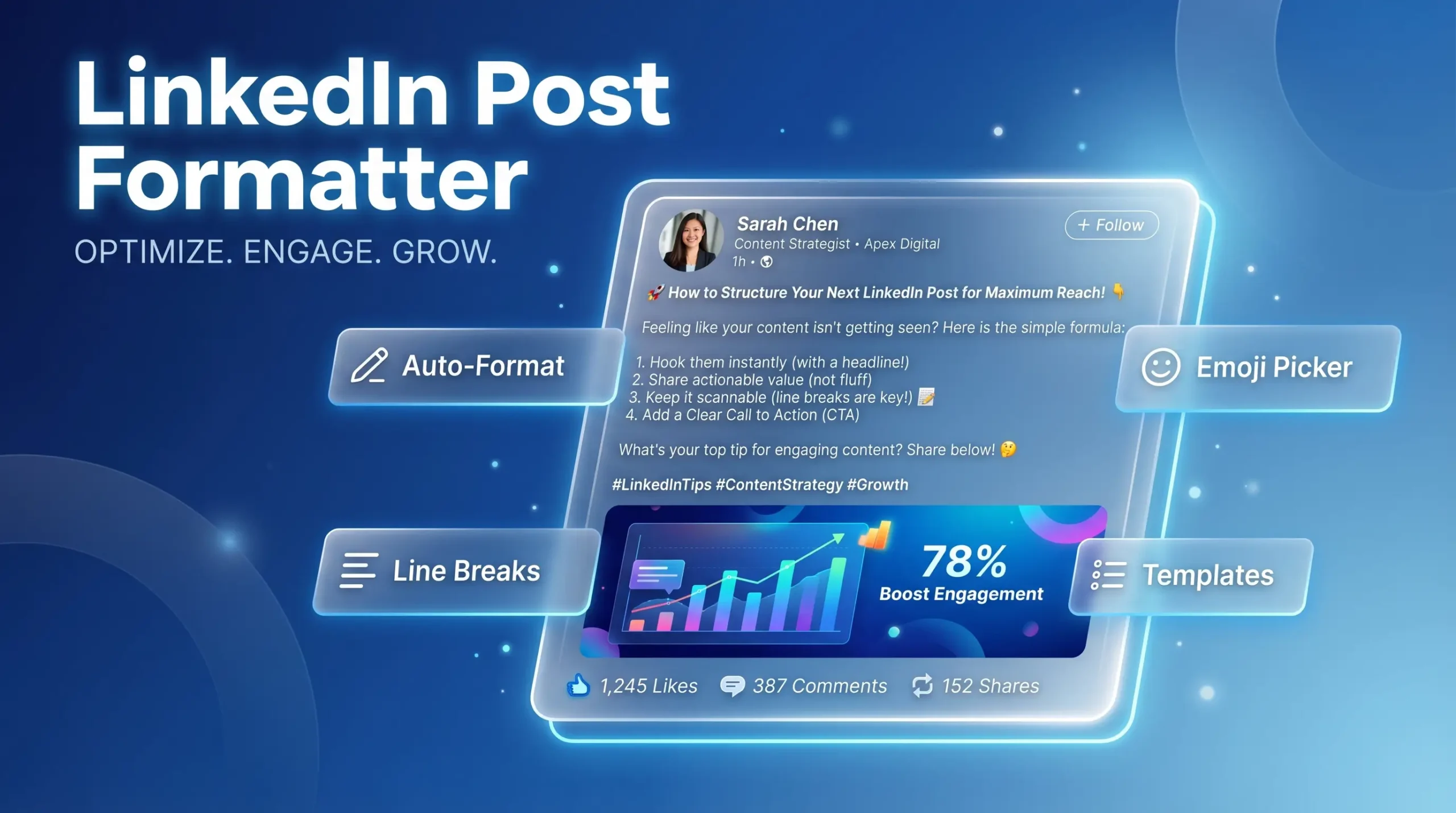
Use our LinkedIn Post Preview and LinkedIn Post Formatter to create clear, high-performing posts with live desktop/mobile preview, formatting tools, emojis, hashtag checks, and one-click copy.
Premium LinkedIn Writing Suite
LinkedIn Post Formatter
Craft high-performing LinkedIn posts with premium formatting and live preview.
Post Preview
Hook Preview (first 210 chars)
0/210Your opening line appears here.
Detected Hashtags
Stop posting blind.
You may spend 30 minutes writing a good idea, then lose attention in 3 seconds because the post looks crowded, flat, or hard to scan. On LinkedIn, format matters as much as the message. People scroll fast. If your opening is weak, your post is gone.
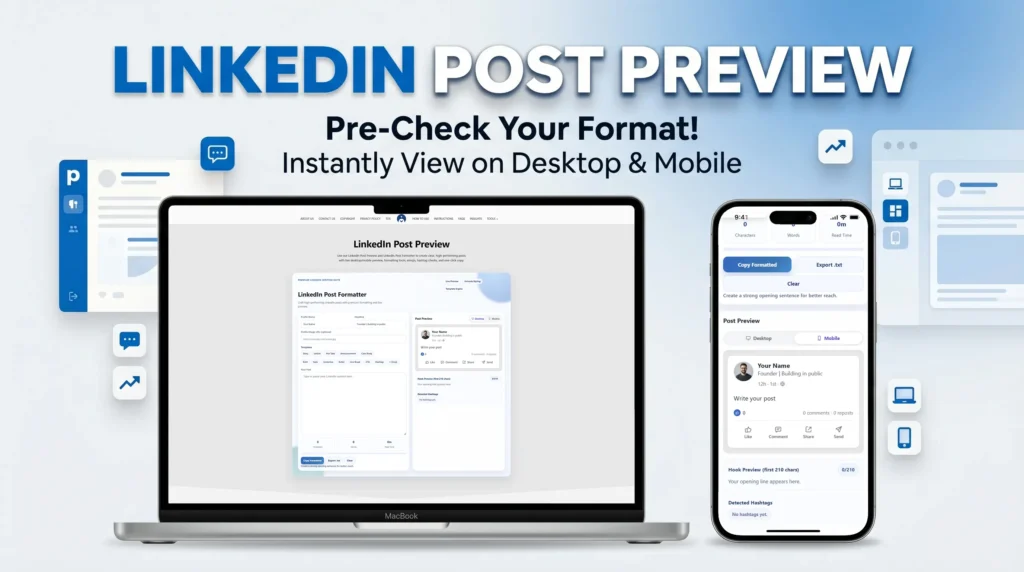
That is why we built this LinkedIn Post Formatter. It helps you write clean posts, shape your message, and preview how your content will look before you publish. You can switch between desktop and mobile view, add styling, use emojis, check hashtags, and copy your final post in one click.
Try our Related Tools: Linkedin Image Downloader
How to use LinkedIn Post Formatter (Step by step)
Using the tool is simple. You can go from rough idea to publish-ready post in minutes.
1) Add your draft
Paste your idea or start from scratch. Do not worry about perfection in the first pass. Just get your thoughts out.
2) Fix your opening hook
Look at your first one or two lines. Ask: would this make someone stop scrolling?
The tool shows your opening area clearly so you can improve it fast.
3) Improve readability
Break long chunks into short lines. Keep one idea per line where possible.
Clean spacing makes a huge difference.
4) Add light formatting
Use bold, italic, or underline only where it helps.
Do not style every line. Small highlights work best.
5) Add relevant emojis
Emojis can make tone friendly and readable, but use them with control.
Pick emojis that support your message, not distract from it.
6) Check hashtags
The tool detects hashtags in your text. Remove random tags. Keep only those that match your topic.
7) Test desktop and mobile preview
Switch views and check both versions.
If mobile looks crowded, shorten lines or reduce visual clutter.
8) Copy and publish
Once your post looks right, click copy and paste to LinkedIn.
You can also export as text if you want a backup.
That is it. Fast workflow. Better output.
Try our this tool: Linkedin Video Downloader
A simple structure for high-performing LinkedIn posts
If you are not sure what to write, use this easy framework inside the tool.
Part 1: Hook
Start with one clear line that creates curiosity or value.
Examples:
“I changed one small habit and got 3x better responses on LinkedIn.”
“Most people lose reach for one simple reason.”
Part 2: Context
Give quick background in 2 to 4 short lines.
Tell people what happened and why it matters.
Part 3: Main value
Share your lesson, steps, or insight.
Use short lines and simple words.
If you have a list, keep it clean and direct.
Part 4: Close with CTA
End with a question or action prompt.
Examples:
- “Want the template? Comment ‘template’ and I’ll share it.”
- “What worked best for your LinkedIn posts this month?”
This structure is easy to follow and works for most content types.
What is LinkedIn Post Formatter?
LinkedIn Post Formatter or LinkedIn Post Preview is our web tool for creating better LinkedIn posts faster.
It gives you a focused writing space with live preview and simple formatting controls.
You write your post in one panel and see the output in real time in another panel. This helps you fix spacing, hook lines, and readability before you publish. You can also test how the same post looks on mobile and desktop, which is important because many people read LinkedIn on phones.
This is not a generic text box. It is a practical writing tool designed for LinkedIn content behavior.
Why formatting matters on LinkedIn?
A lot of people think only ideas matter. Ideas matter, but format decides if people keep reading.
Here is what usually happens:
- Long blocks of text make people scroll away.
- A weak first line gets ignored.
- No spacing means low readability.
- Too much clutter looks unprofessional.
- A post that looks fine on desktop may break on mobile.
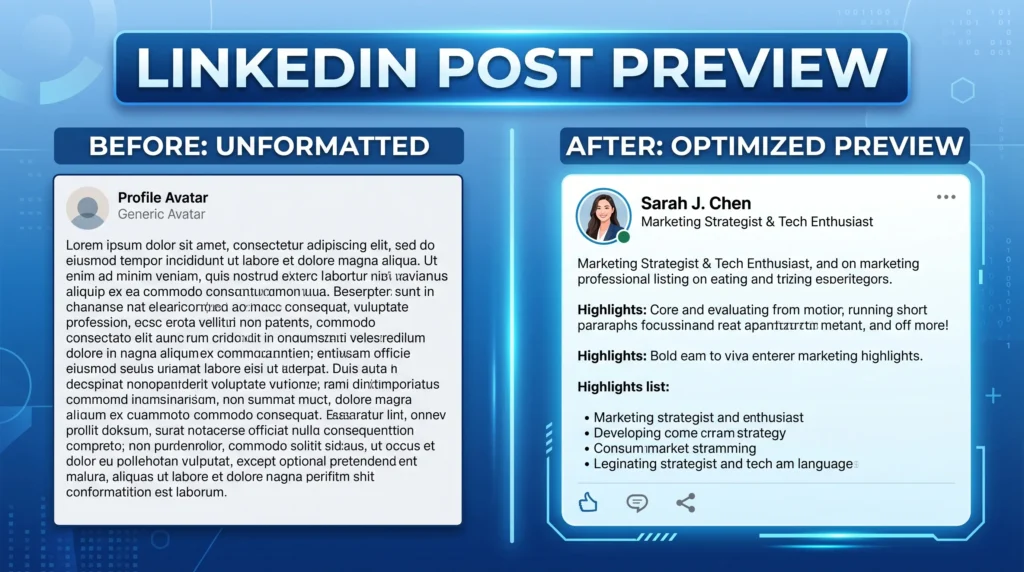
When a post is easy to read, people stay longer.
When people stay longer, engagement improves.
That is the simple advantage of using a proper LinkedIn post formatting tool.
What you can do with this tool?
Our LinkedIn Post Formatter includes the features you actually need, not extra noise.
- Live LinkedIn-style preview while you write
- Desktop and mobile preview toggle
- Bold, italic, and underline formatting
- Built-in emoji picker for quick inserts
- Hook preview for the first 210 characters
- Character count and word count
- Read-time estimate
- Hashtag detection from your draft
- One-click copy for fast posting
- Export to text file for backup
Each feature exists for one reason: help you publish faster with better structure.
Tips to get better results every week
You do not need viral tricks. You need consistency and clarity.
- Write for real people, not algorithms.
- Keep your first line sharp and specific.
- Use short sentences.
- Use whitespace to reduce visual stress.
- Keep one clear goal per post.
- Do not overuse emojis or hashtags.
- Preview before posting every time.
- Save good drafts and reuse strong structures.
If you do this for a few weeks, your writing quality will improve naturally.
Common mistakes this tool helps you avoid
Many LinkedIn posts fail for avoidable reasons. Our LinkedIn Post Formatter helps catch these early.
- Too much text in one block
- No clear opening line
- Over-styled text that looks noisy
- Random emojis that hurt credibility
- Hashtag stuffing
- Posts that look fine on desktop but messy on mobile
When you see your post in preview before publishing, it is easier to fix these issues quickly.
Why users keep coming back to this tool
People use the LinkedIn Post Formatter again and again because it removes small but annoying writing problems.
- You do not need to open multiple apps.
- You do not need to manually check layout every time.
- You do not need to guess if your hook is strong enough.
You get one clean place to write, format, preview, and copy.
For busy users, that is a big win.