LinkedIn videos are no longer limited to short updates.
Today, professionals share career advice, interviews, tutorials, and business insights through video posts. Many of these videos are worth saving so they can be watched again later.
For iPhone users, this can be confusing. LinkedIn does not provide a download button, and the in-app save option does not allow offline access.
Because of this, many users are unsure how to download LinkedIn videos safely on an iPhone.
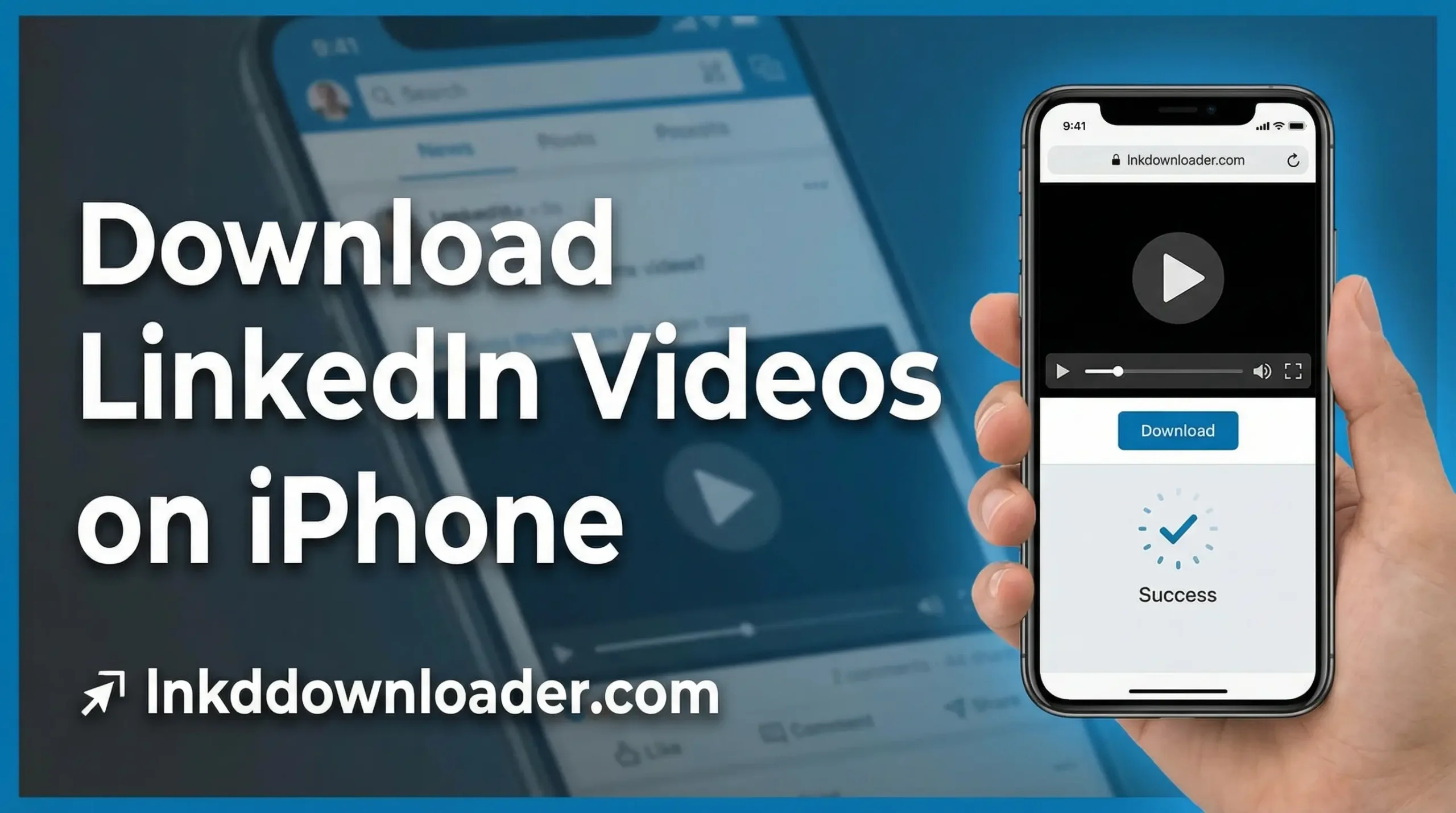
This guide explains a safe, working, and no-login method that actually works on iPhones.
Why Download LinkedIn Videos on iPhone?
Before we get to the how-to, let’s talk about why this matters:
📱 Watch Offline Anytime
No WiFi? No problem. Downloaded videos are perfect for:
- Remote areas with poor connectivity
- Long flights without internet
- Subway commutes with spotty connection
- Saving mobile data on limited plans
🎓 Build Your Learning Library
LinkedIn is packed with valuable educational content:
- Industry expert interviews
- Tutorial videos
- Conference presentations
- Skill-building content
Download and organize these videos to create your personal learning archive.
💼 Professional Reference
Some videos are too good to lose:
- Client testimonials
- Product demonstrations
- Industry case studies
- Competitor analysis
Having them saved means you can reference them whenever needed.
🔄 Easy Sharing
Sometimes you want to share LinkedIn content with people who:
- Don’t have LinkedIn accounts
- Prefer other messaging apps
- Need the video in a presentation
- Want to watch without logging in
Downloaded videos give you that flexibility.
Best Way to Download LinkedIn Videos on iPhone
For iPhone users, the Safari browser method is the most reliable option.
Many iOS apps either stop working after updates, show excessive ads, or request permissions that users are uncomfortable granting. Browser-based tools avoid these problems and work directly without installing any apps.
This method is simple, secure, and works across most iOS versions.
Step-by-Step: Download LinkedIn Videos on iPhone

Download Linkedin Videos on iPhone Using LnkdDownloader (Recommended)
This is the easiest and fastest method to download LinkedIn videos on your iPhone. No app installation required – everything works right in your Safari browser.
Step 1: Find the LinkedIn Video
- Select “Copy link” from the share menu
- Open the LinkedIn app on your iPhone
- Navigate to the video you want to download
- Tap the share icon (arrow pointing up) on the video post
Pro Tip: Make sure you copy the link from the actual post, not just the video player. The link should start with
https://www.linkedin.com/posts/
Step 2: Visit LnkdDownloader
- Open Safari browser on your iPhone (or any browser you prefer)
- Go to https://lnkddownloader.com
- You’ll see a simple, clean interface with a text box
Why Safari? While other browsers work fine, Safari is pre-installed and handles downloads smoothly on iPhone.
Step 3: Paste and Download
- Tap on the text box where it says “Paste LinkedIn video link“
- Paste the copied link (press and hold, then select “Paste“)
- Tap the “Download” button
- Wait 2-3 seconds while the tool processes the video
- You will see the following download options:
- Preview
- Download
- If you want to see its preview then tap on “Preview” button
- If you want to download the video then tap on “Download” button, in our case we will download the video.
- The video will start downloading automatically
Step 4: Save to Photos (Important!)
When the download completes, you need to save it properly:
- The video will open in Safari’s video player
- Tap the share icon (square with arrow pointing up)
- Scroll and select “Save Video” or “Save to Photos“
- The video now appears in your iPhone’s Photos app!
That’s it! You’ve successfully downloaded a LinkedIn video to your iPhone. The entire process takes less than 30 seconds once you get the hang of it.
iPhone Storage Management Tips
Downloading videos can quickly fill up your iPhone. Here’s how to manage:
Check Your Storage
Settings → General → iPhone Storage
This shows exactly what’s using your space.
Organize Downloaded Videos
- Create albums in Photos app
- Name them logically: “LinkedIn Learning“, “Inspiration“, “Work Reference“
- Move videos to appropriate albums immediately after download
Use iCloud Photos
Enable iCloud Photos to automatically backup videos:
- Settings → [Your Name] → iCloud → Photos → iCloud Photos
- Originals stored in cloud, optimized versions on phone
- Free up space while keeping access
Regular Cleanup
- Review downloaded videos monthly
- Delete videos you’ve already watched or no longer need
- Consider moving to computer or external storage for long-term archiving
What Makes LnkdDownloader the Best Choice?
You might wonder why we recommend LnkdDownloader specifically. Here’s why:
🎯 iPhone-Optimized
Unlike many tools designed for desktop, LnkdDownloader works flawlessly on iPhone’s Safari browser with touch-friendly buttons and mobile-optimized interface.
🚀 Lightning Fast
Most downloads complete in under 2-3 seconds. No lengthy processing times or queues.
🔒 Completely Private
No account required, no data collection, no tracking. Your downloads are your business.
💰 100% Free
No hidden fees, no premium tiers, no advertisements blocking your downloads. Free forever.
🎬 Multiple Quality Options
Choose the perfect balance between quality and file size for your needs.
🔄 Always Updated
When LinkedIn changes something, LnkdDownloader adapts quickly to keep working.
📱 No App Installation
Everything works directly in your browser. No App Store downloads, no permissions, no storage taken up by apps.
🌐 Works Worldwide
Whether you’re in New York, London, Mumbai, or Tokyo – it works the same everywhere.
Troubleshooting Common Issues:
Problem 1: “Download Failed” Error
Solutions:
- Check your internet connection
- Try copying the link again (sometimes it gets corrupted)
- Refresh the LnkdDownloader page
- Clear Safari’s cache: Settings → Safari → Clear History and Website Data
- Try a different quality option
Problem 2: Video Won’t Save to Photos
Solutions:
- Grant Photos access: Settings → Safari → Photos → Allow
- Check storage space: Settings → General → iPhone Storage
- Restart your iPhone
- Update iOS to the latest version
Problem 3: Link Not Working
Solutions:
- Make sure you copied the POST link, not just the video link
- The link should include
/posts/or/feed/update/ - Try copying the link from LinkedIn’s website (not app)
- Some private or restricted videos can’t be downloaded
Problem 4: Poor Video Quality
Solutions:
- The download quality depends on the original upload quality
- Try selecting a higher quality option
- Some older LinkedIn videos are only available in lower quality
- If the original video is low quality, downloads will be too
Problem 5: Downloads Taking Too Long
Solutions:
- Switch to WiFi instead of cellular data
- Close other apps using internet bandwidth
- Try downloading during off-peak hours
- Choose a lower quality option for faster downloads
My Last Words:
Learning how to download LinkedIn videos on your iPhone opens up a world of possibilities:
✅ Build your personal learning library
✅ Watch content offline anywhere, anytime
✅ Never lose valuable videos again
✅ Create organized collections by topic
✅ Share content more flexibly
✅ Save mobile data
✅ Reference material whenever needed
The process is simple:
- Copy the link
- Visit LnkdDownloader
- Download and save
It literally takes 30 seconds.
No complicated apps, no technical knowledge required, and no cost involved.
So next time you see an amazing LinkedIn video, don’t just like and scroll past. Download it, save it, and build your collection of valuable professional content.
Ready to start downloading?
Visit https://lnkddownloader.com now and save your first LinkedIn video to your iPhone!