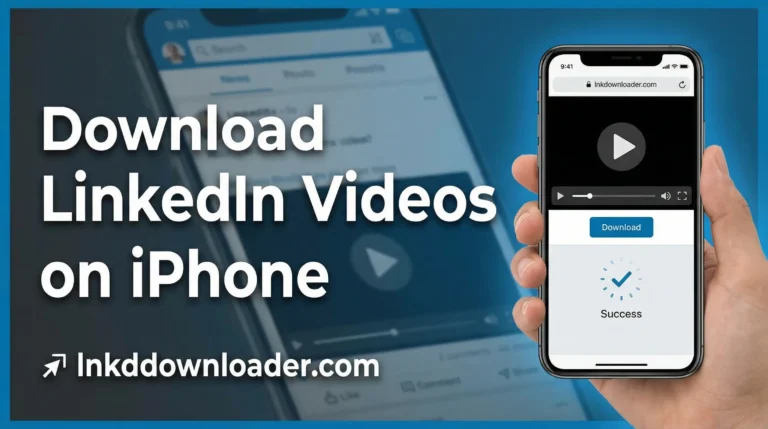
LinkedIn is full of useful videos.
People share job tips, business advice, interviews, tutorials, and real-life experiences every day. Many times, you want to save a LinkedIn video so you can watch it later, share it with your team, or keep it for learning.
But LinkedIn does not offer a download button.
That is why many users Direct Message me using my facebook page as well as other social media accounts and ask me a very simple question:
How to download LinkedIn videos safely and easily?
This complete guide will explain everything in clear and simple words, step by step. You do not need any technical knowledge.
Why Do People Want to Download LinkedIn Videos?
People download LinkedIn videos for many good reasons, such as:
- Watching videos offline
- Saving educational content
- Keeping business or marketing ideas
- Sharing videos with coworkers
- Learning from experts again and again
LinkedIn videos are often informative, not just entertainment. That makes them valuable.
Is It Possible to Download LinkedIn Videos?
Yes, it is possible to download LinkedIn videos online.
Since LinkedIn does not provide a built-in download option, people often use online LinkedIn video downloader tools. These tools help you save videos without installing any software.
Most good tools work directly in your browser like ours.
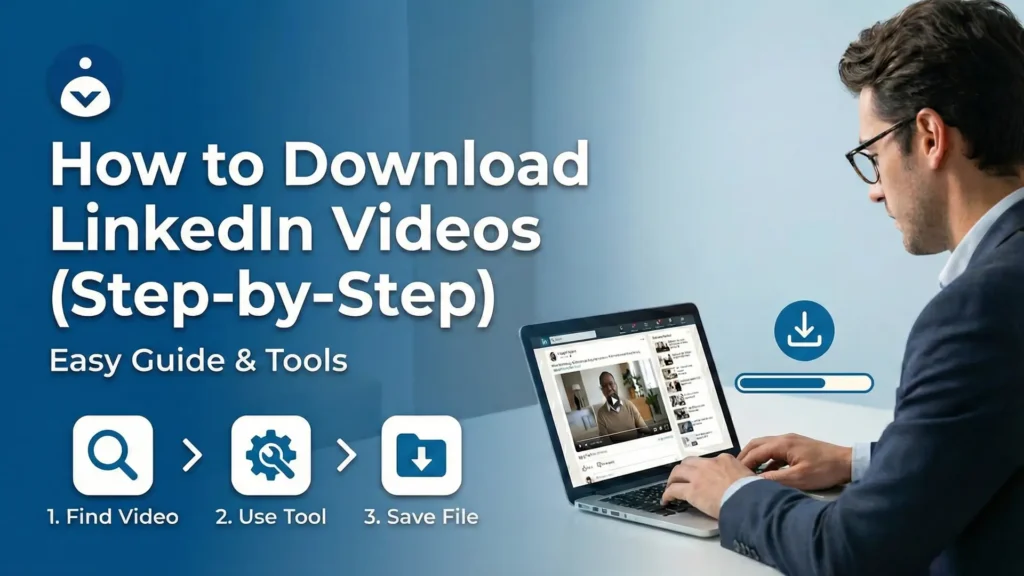
How to Download LinkedIn Videos (Step-by-Step)
Many people struggle with this at first because LinkedIn does not show any download button. This often confuses new users. We noticed that once people understand where to copy the link from, the whole process becomes very simple.
Step 1: Open LinkedIn
- Go to LinkedIn using your browser or mobile app.
- Find the post that contains the video you want to save.
Step 2: Copy the Video Link
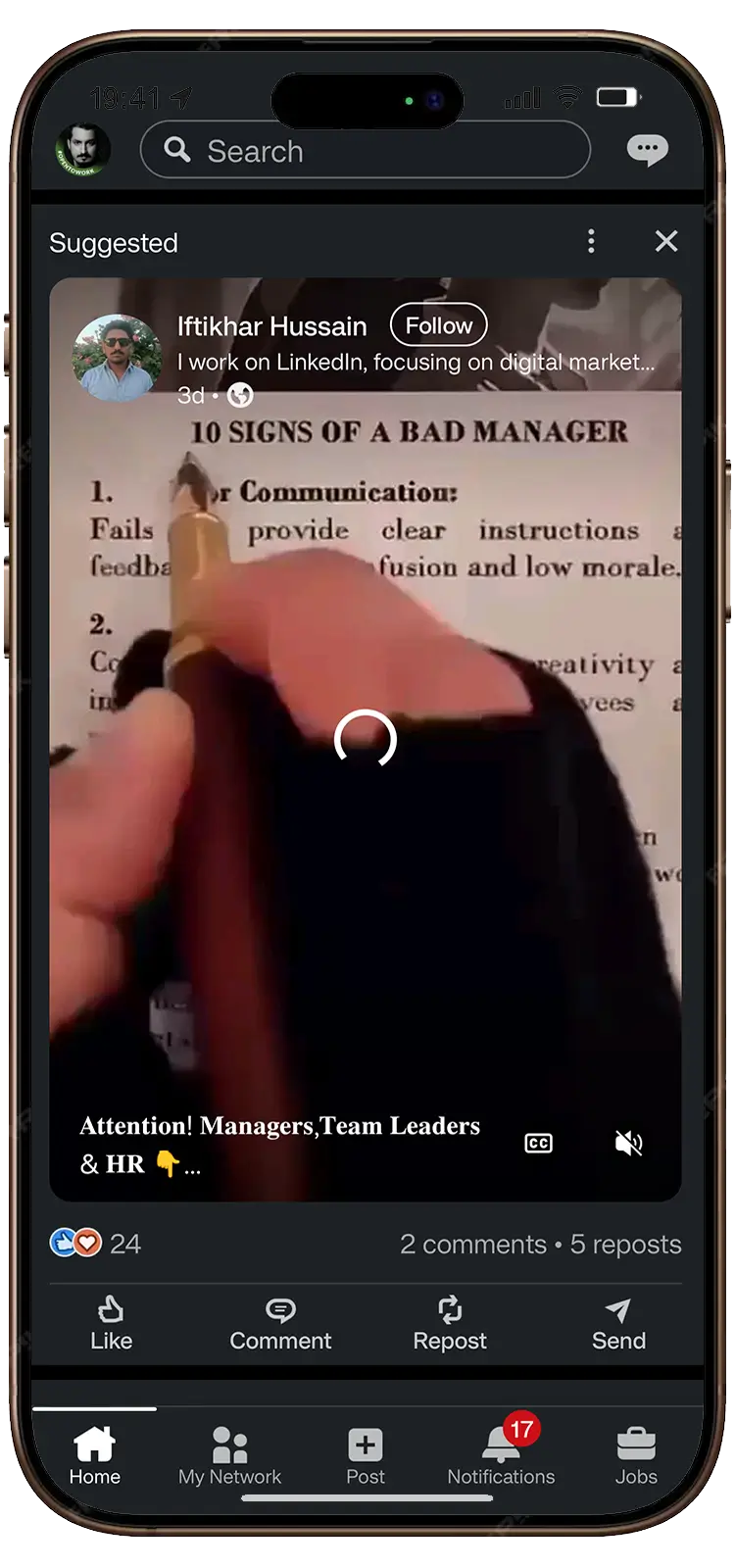
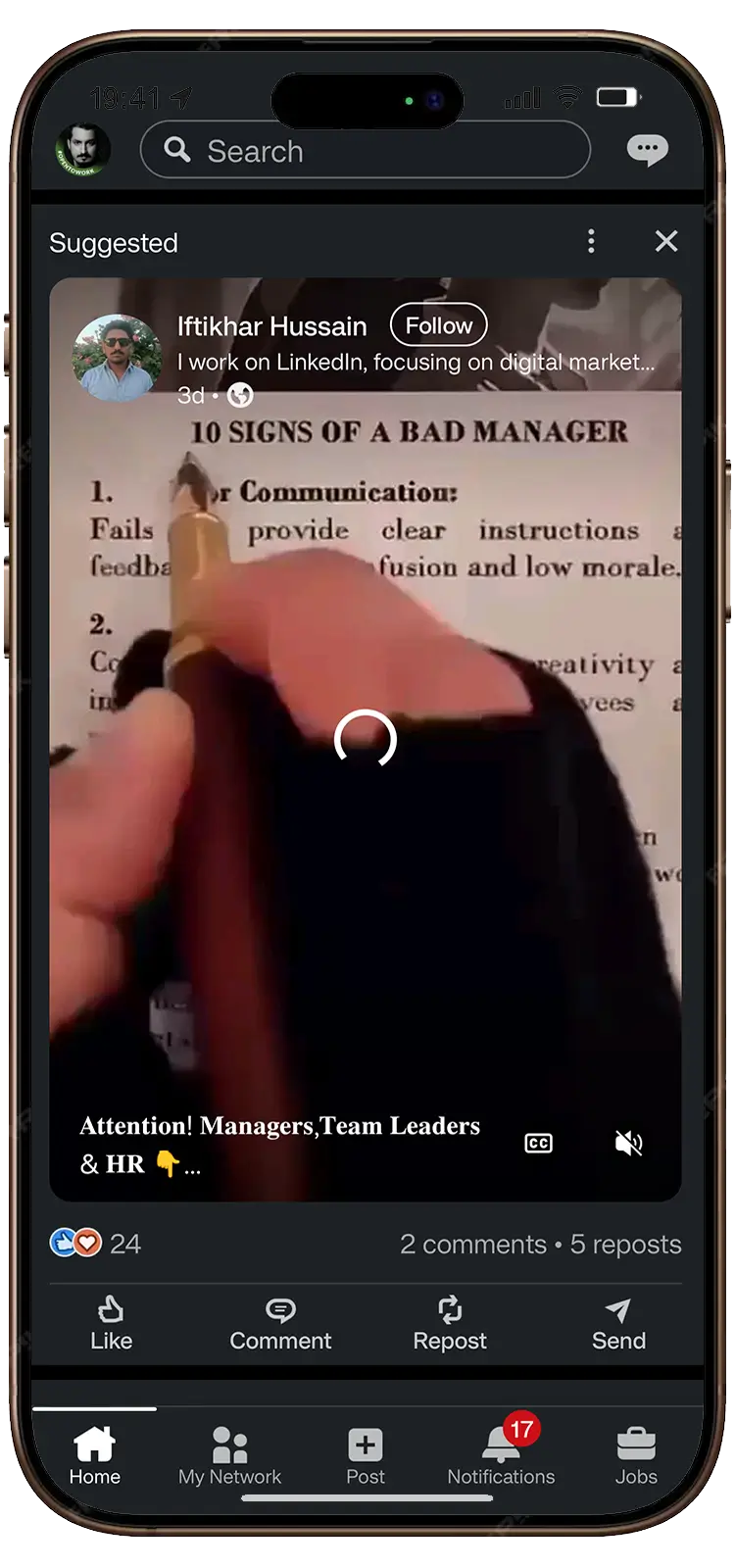
- Click on “➢ Send” on the LinkedIn post and A popup box will be appeared.
- Choose “🔗 Copy link to post” from the box.
- Now the video link is copied to your clipboard.
Step 3: Paste the Link into a LinkedIn Video Downloader
- Open a trusted LinkedIn video downloader website.
- Paste the copied link into the input box.
- Click on the “Fetch Media” button.
Step 4: Download the Video
After a few seconds, the tool will show two options.
- Choose the “Preview” option if you want to open that video or image in new tab (In this way you can copy direct video/image link)
- Click on “Download” button, if you want to save the video/image to your device.
- That’s it. No login, no software, no stress.
Video Tutorial:
In our testing, this method worked best because it does not require any login, software installation, or technical setup. It works smoothly on both mobile phones and desktop browsers.
How to Download LinkedIn Videos on Mobile (Android & iPhone)
You can also save videos from LinkedIn on your phone.
For Android Users:
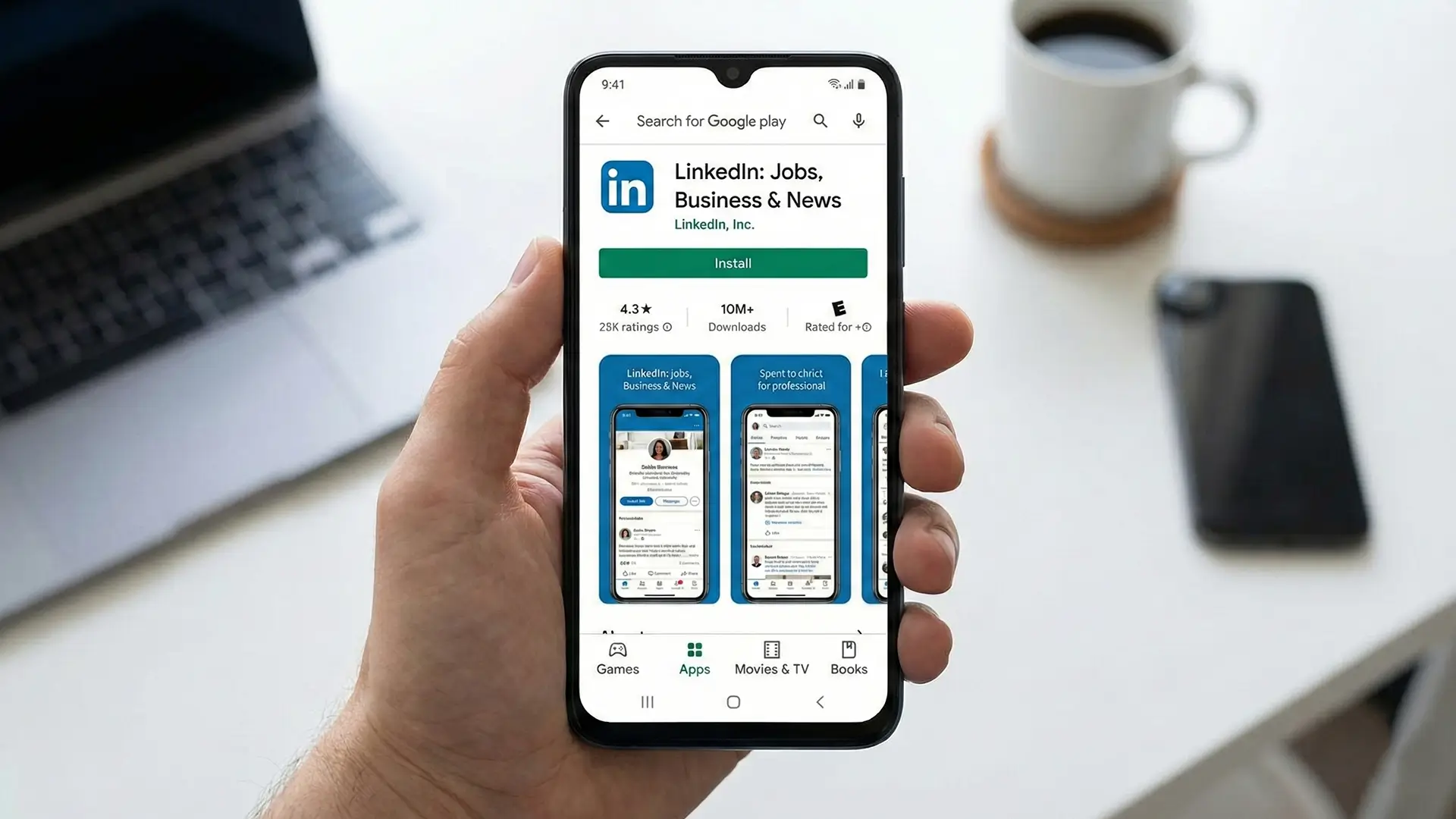
1. Open LinkedIn app (If you have not Linkedin App then you can download it from Playstore)
2. Copy the post link
3. Go to lnkddownloader.com
4. Paste the link you copied from linkedin app and tap on “Fetch Media” button.
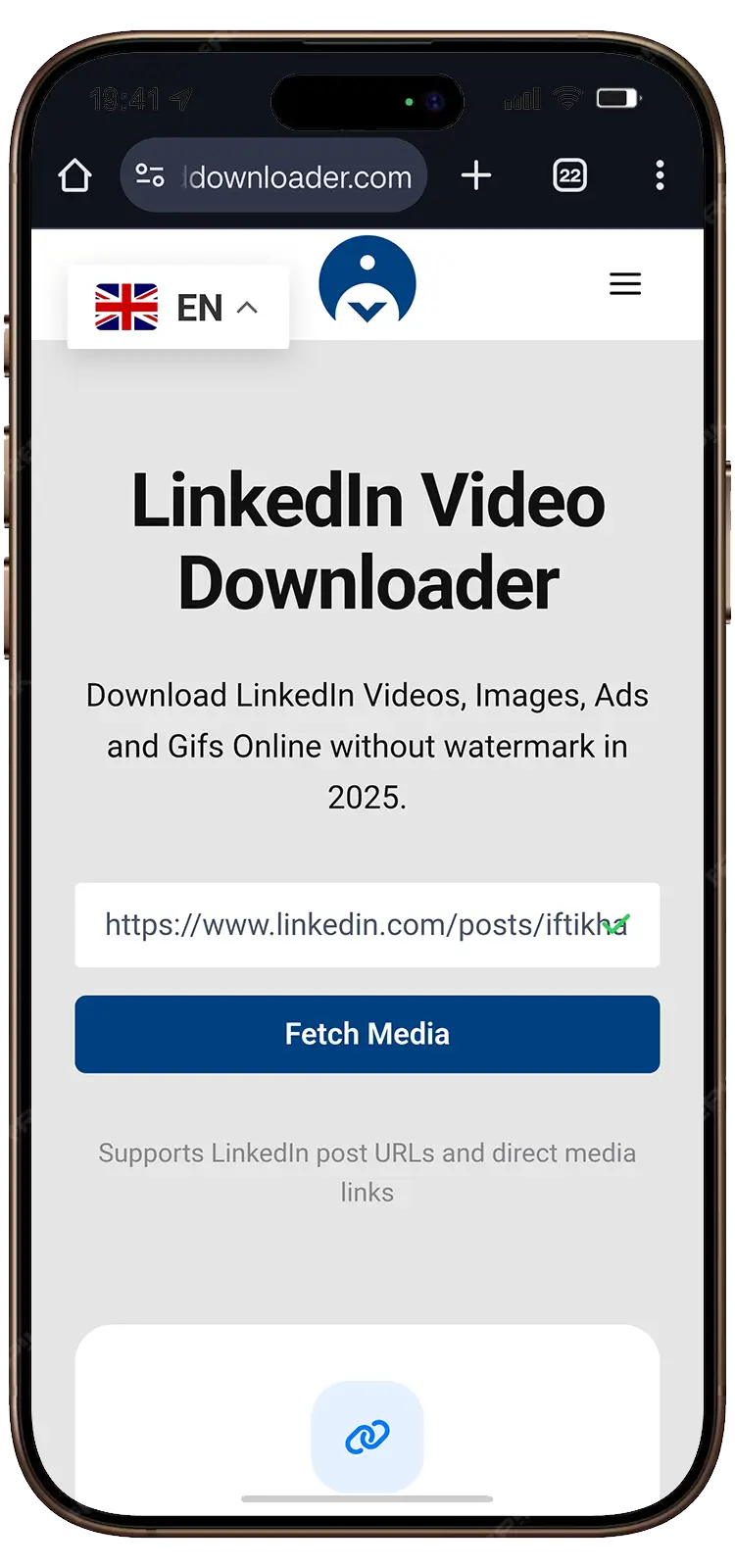
5. Now tap on “Download” button to save the video/image to your android phone.
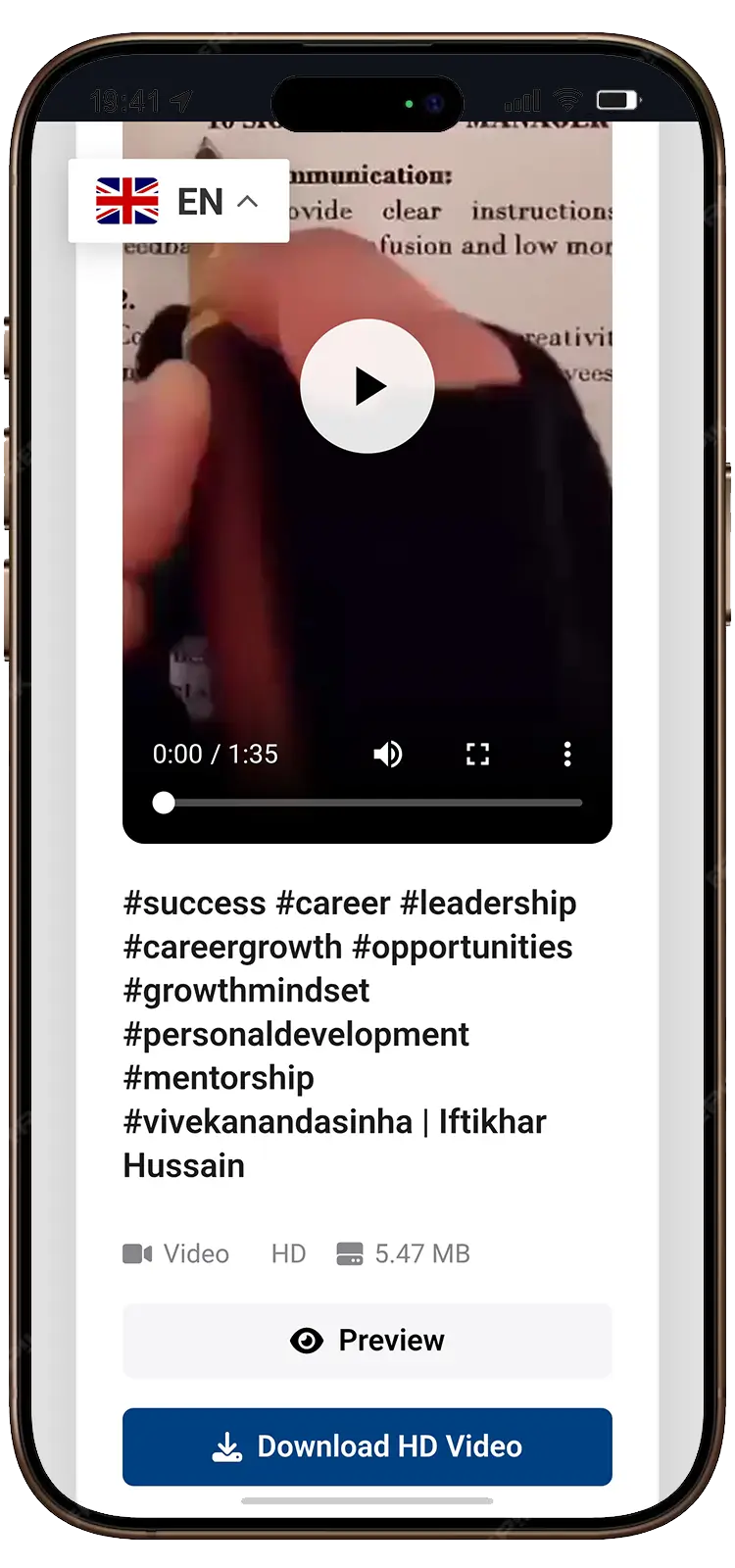
The video will be saved to your phone’s storage.
For iPhone Users:
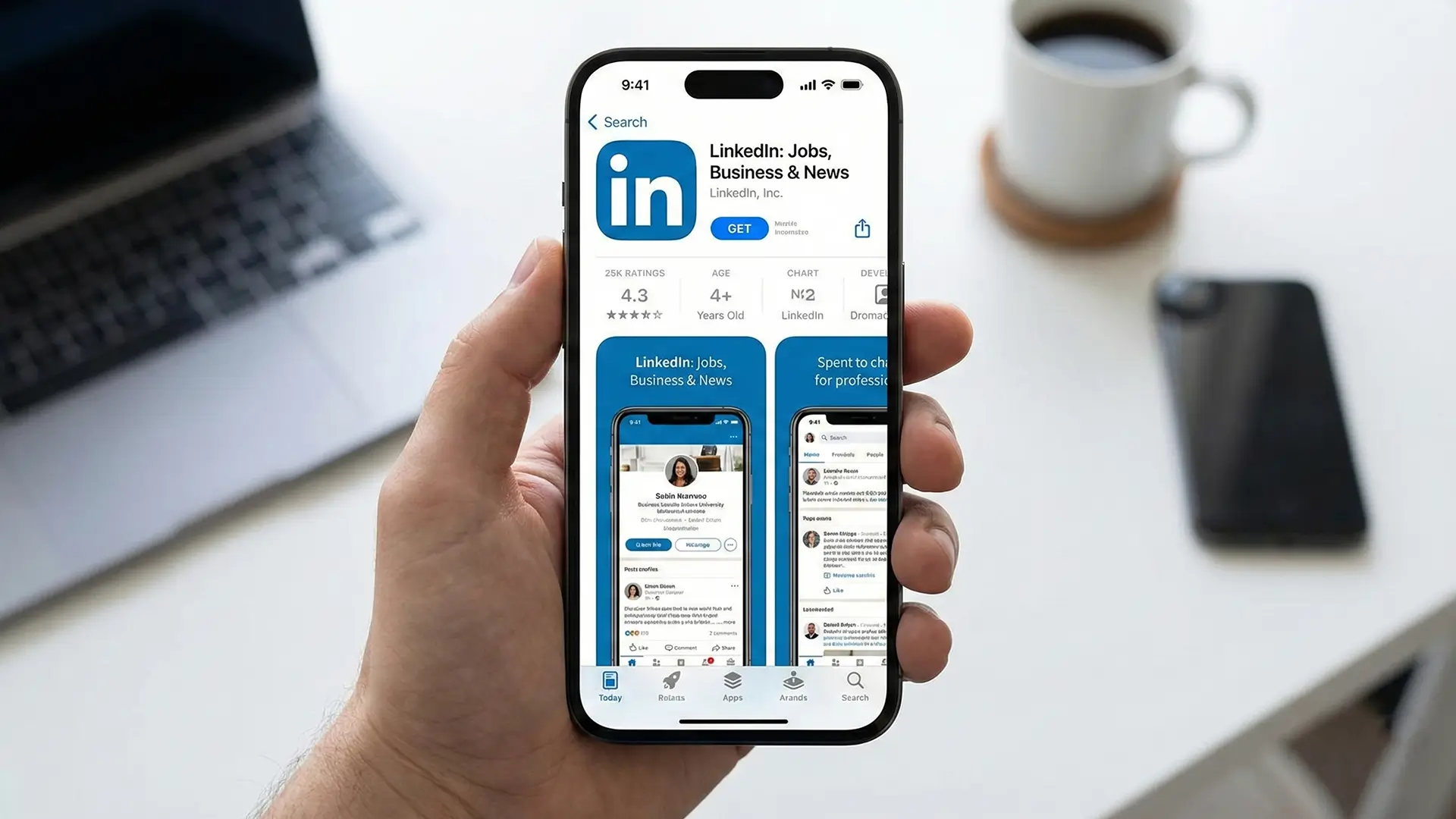
1. Open LinkedIn app (If you have not Linkedin App then you can download it from App Store)
2. Copy the linkedin post link
3. Open lnkddownloader.com in Safari browser
4. Paste the copied link and tap on “Fetch Media” button
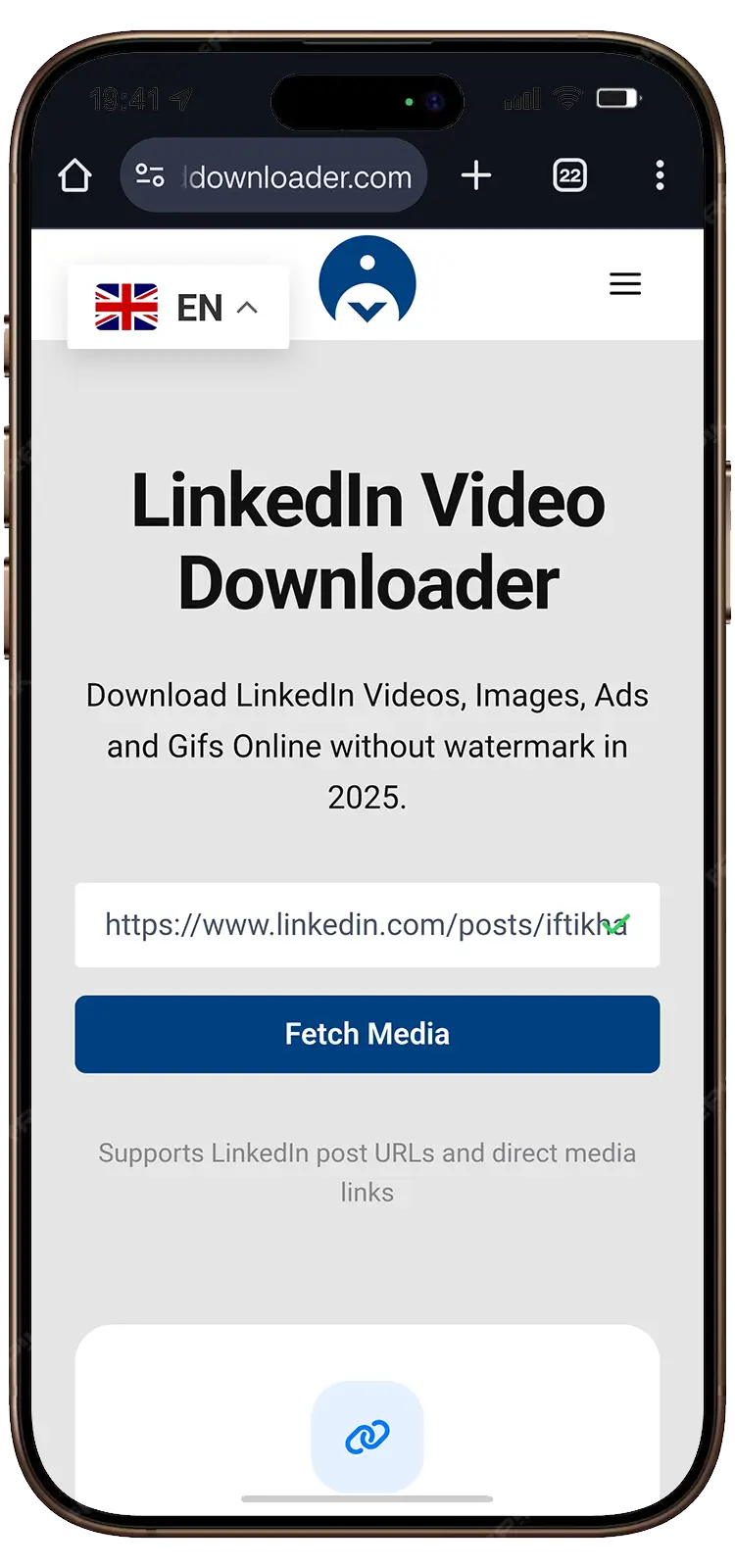
5. Now wait for 1-2 seconds, two options will be shown, please tap on “Download” button and your file will be downloaded automatically.
You may need to save the video to Files and then move it to Photos.
Why Use an Online LinkedIn Video Downloader?
Online tools are popular because they are:
- Free to use
- Easy for beginners
- Fast and simple
- No installation needed
- Works on all devices
This makes them the best choice for most users.
Is It Safe to Download LinkedIn Videos?
Downloading LinkedIn videos is safe if you use a trusted tool like ours.
LnkdDownloader.com Offers:
- Do not ask for login details
- Do not track users
- Do not store downloaded content
- Do not install software
Always avoid websites that ask for passwords or browser extensions without reason (Always use a trusted and safe tool like https://lnkddownloader.com).
What Types of LinkedIn Content Can Be Downloaded?
LnkdDownloader supports:
- Public LinkedIn videos
- Video posts
- Ads videos (public)
- Shared video content
Also allowing downloading:
- Images
- Carousel posts
- Document previews
Private or restricted videos usually cannot be downloaded.
Common Problems and Easy Fixes
Video Not Downloading?
- Make sure the post is public
- Check that the link is copied correctly
- Try refreshing the page
- Use a different browser
Download Button Not Showing?
- Disable ad blockers
- Try again after a few seconds
- Use a stable internet connection
Final Thoughts
LinkedIn is full of valuable video content.
Learning how to download LinkedIn videos helps you save knowledge, grow skills, and stay productive.
By using a safe online tool and following the steps in this LinkedIn video download guide, you can easily save videos in just a few clicks.
Always respect content creators and use downloaded videos responsibly.
Frequently Asked Questions:
Yes, our LinkedIn video downloader is completely free. You can download public LinkedIn videos without paying any fee or creating an account.
No. You do not need to log in or provide any personal information. You only paste the LinkedIn post link and download the video.
Yes. You can download LinkedIn videos on Android and iPhone using any modern browser. No app installation is required.
No. LnkdDownloader.com only supports public LinkedIn posts. Private, restricted, or members-only videos cannot be downloaded.