LinkedIn videos are no longer just short updates.
Today, people share career advice, interviews, business lessons, and practical tips through video posts. Many of these videos are useful enough to watch again later.
If you are using an Android phone, saving these videos can feel confusing. LinkedIn does not offer a download option, and some apps ask for login or permissions that users do not trust.
The good news is that you can download LinkedIn videos on Android safely, without logging in, and without installing risky apps.
This guide explains the best working method for Android users, what to avoid, and how to download videos step by step.
Can You Download LinkedIn Videos on Android?
Yes, you can – as long as the video is public.
If a LinkedIn video plays in your mobile browser without asking you to sign in, it means the post is public. Public videos can be downloaded using browser-based tools that work directly on Android.
Private posts, closed groups, and restricted content cannot be downloaded unless you have proper access.
Best Way to Download LinkedIn Videos on Android
As an expert, the browser method is the safest and most reliable option on android device.
Because many Android apps on the Play Store either stop working, show too many ads, or ask for unnecessary permissions. Browser-based tools avoid these issues and work smoothly on most devices.
This method works on:
- Google Chrome
- Samsung Internet
- Firefox
- Other modern Android browsers
No app installation is required.
Step-by-Step: Download LinkedIn Videos on Android
Follow these steps carefully for the best results.
Step 1: Find the LinkedIn Video
Open the LinkedIn app or website and locate the video you want to save.
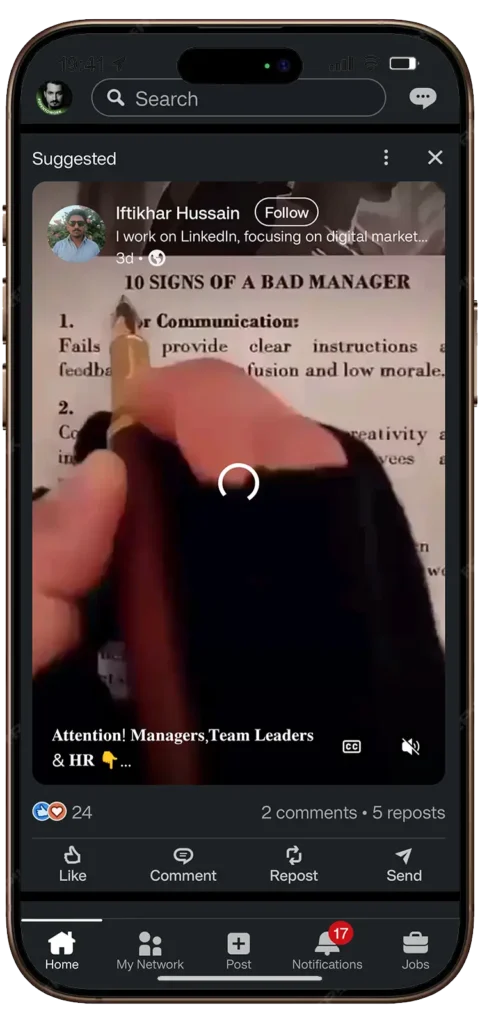
Make sure the post is public.
If the video can be viewed without login in a browser, it is public.
Step 2: Copy the Post Link
Tap the three dots (⋯) on the LinkedIn post (You can see it on top right corner)
Select Copy Link to post.
This link contains the video source.
Step 3: Open LinkedIn Video Downloader in Your Browser
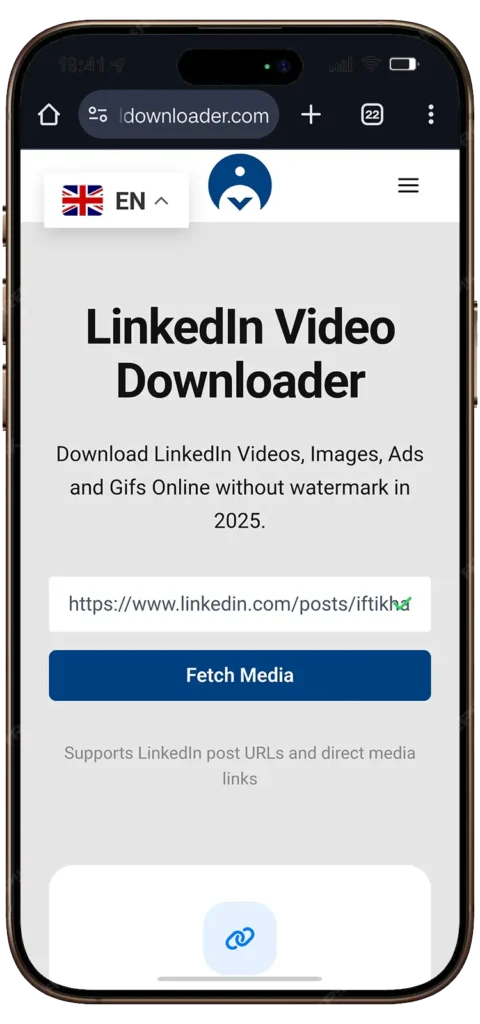
Open your Android browser and go to lnkddownloader.com website.
Paste the copied link into the input box.
You will not be asked to:
- log in
- create an account
- install an app
Step 4: Download the Video
Tap the “Fetch Media” button.
After a short wait, the video download option will appear.
There are two options available, first is “Preview” and the second one will be “Download HD Video”
Tap on “Download HD Video” to save the video to your phone.
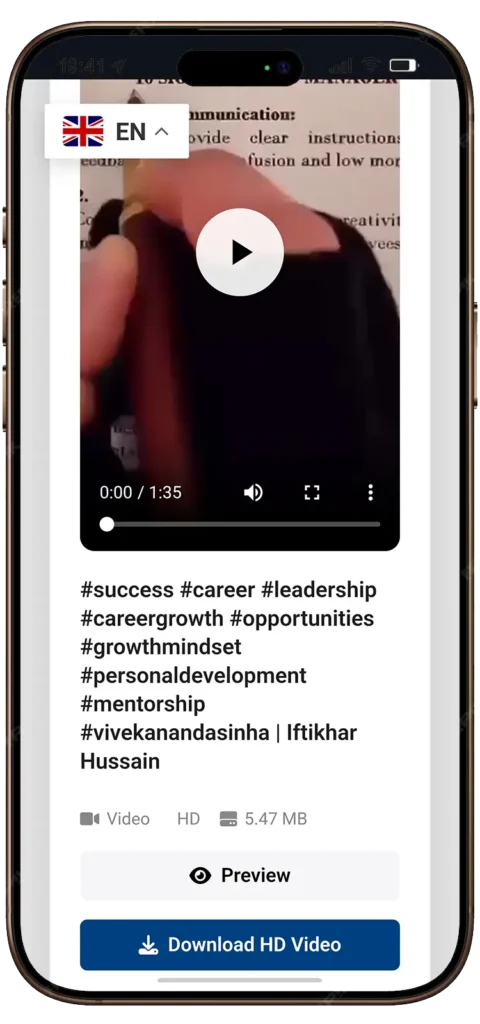
In most cases, the video is saved in your Downloads folder.
Where Are Downloaded Videos Saved on Android?
By default, Android saves downloaded videos in:
- Downloads folder
- or Internal Storage → Download
You can view the video using:
- Gallery app
- File Manager
- Google Photos (after sync)
Can You Download LinkedIn Videos Without Login on Android?
Yes. For public LinkedIn posts, login is not required.
Browser-based downloader tool like lnkddownloader.com work without connecting to your LinkedIn account.
If any website asks for your LinkedIn email or password, it should be avoided.
Is It Safe to Download LinkedIn Videos on Android?
It is safe if you choose the right method.
Safe tools usually:
- do not ask for login
- do not request permissions
- do not force app installation
- do not redirect multiple times
Based on real testing, browser-based tools are the safest option (like lnkddownloader.com) for Android users.
Common Problems and Easy Fixes
Sometimes users face small issues. Here are the common ones.
If the video does not download:
- check if the post is public
- copy the link again
- refresh the downloader page
- try another browser
If the video plays but does not save:
- Try to clear your browser cache or try in different browser
- Make sure storage permission is enabled for the browser
Most issues are temporary and easy to fix.
Is Downloading LinkedIn Videos Legal?
Downloading public LinkedIn videos for personal or educational use is generally acceptable.
However:
- do not re-upload videos without permission
- do not use downloaded videos for commercial purposes
- always respect the original creator
Responsible use is important.
Final Thoughts
Downloading LinkedIn videos on Android is easier than most people think.
You do not need special apps, accounts, or risky permissions.
For public posts, a simple browser-based method works reliably and safely.
For most users, this is the best way to save LinkedIn videos on Android for offline viewing or reference.